Two-factor authentication (2FA) is an additional verification step when logging into your account: after entering your username and password, the system asks you to enter a one-time code that is sent to your VKontakte private messages. This means that even if your password is leaked, only you will be able to log in to your account – no one else who knows your password will have access to your VK account, where the code is sent.
This article describes how to enable and disable 2FA, how to log in using it, and what to do if the code does not arrive or does not work.
When is 2FA used?
2FA works only when logging in with a username and password (the «Username» and «Password» fields on the login page).
If you log in via VK ID (the «Log in with VK ID» button), the second step with the code is not required – you just need to confirm your login at id.vk.com.
It makes sense to enable 2FA if you use login and password authentication and want to strengthen your account security.
How to enable or disable 2FA
- Log in to the dashboard and open Settings (the «Settings» link in the side menu).
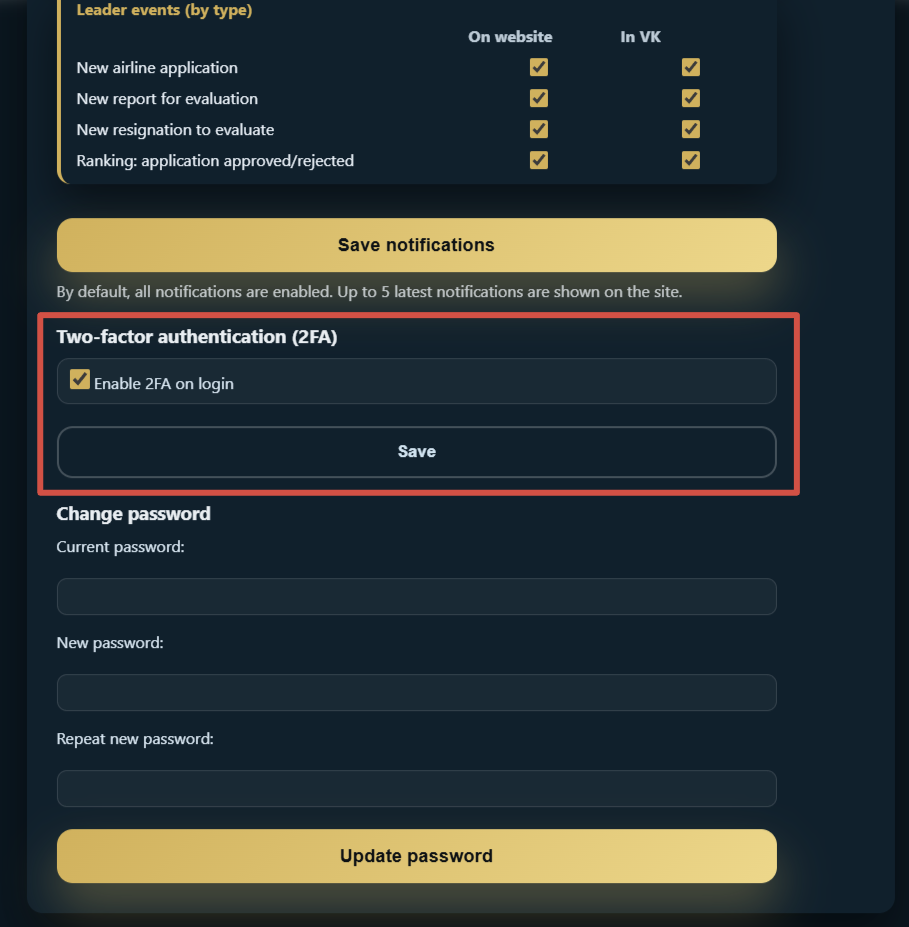
- Find the «Two-factor authentication (2FA)» section.
- Turn the «Enable 2FA on login» switch.
- Click the «Save» button.
After saving, the next time you log in with your username and password, the system will ask for a code (if 2FA is enabled) or, conversely, authorize you without a code (if it is disabled).
How to log in to your account with 2FA enabled
Step 1. Enter your username and password
On the login page, enter your username (VK ID) and password, then click «Log in».
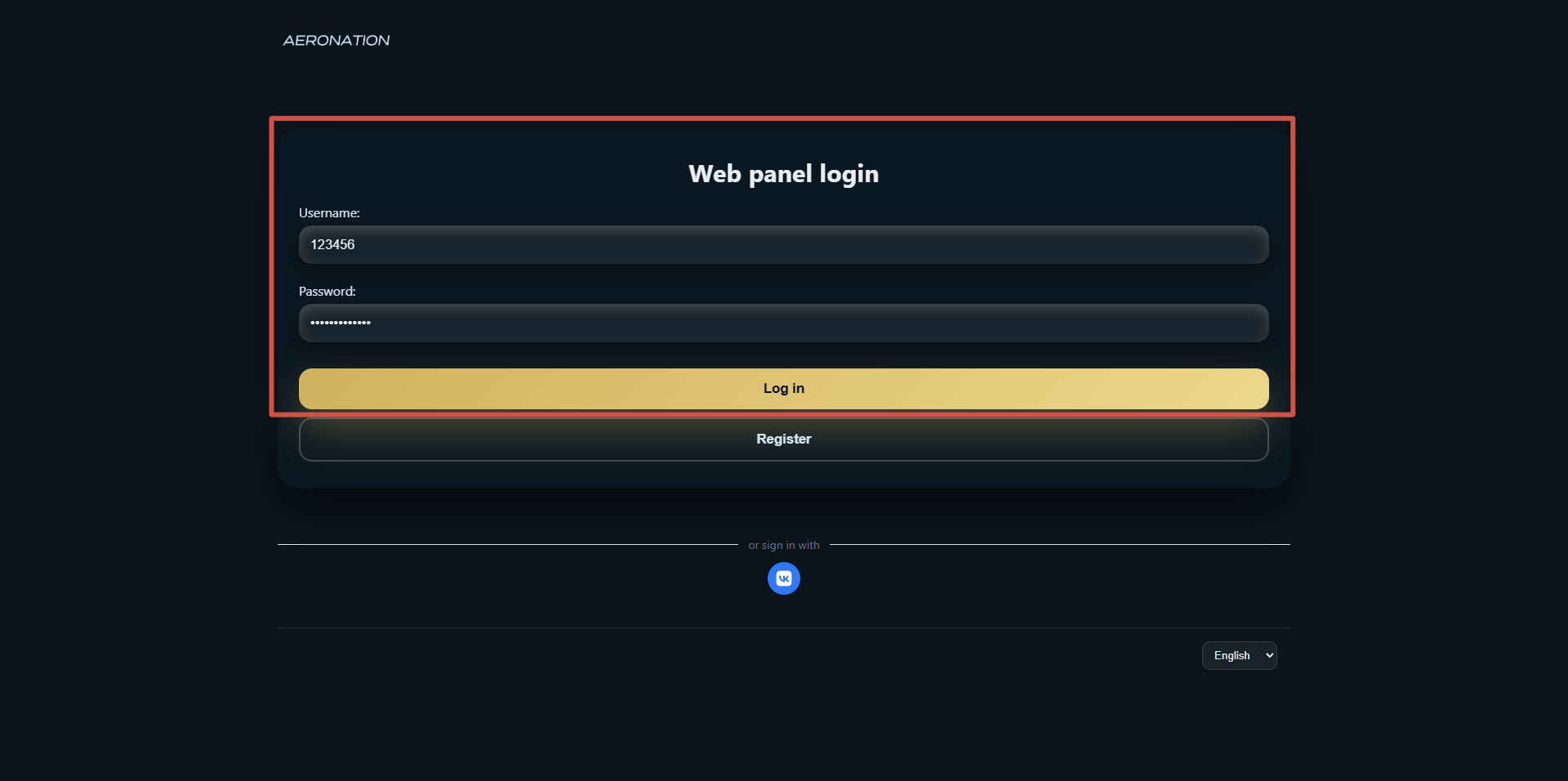
If your login or password is incorrect, you will remain on the login page and see an error message. If it is correct and you have 2FA enabled, proceed to step 2.
Step 2. Receiving the code in VK
Immediately after successfully verifying your login and password, the panel generates a six-digit one-time code and sends it to you in a private message on VKontakte (in a dialogue with the Aeronation Web community). The text of the message looks like this: «Your login code: XXXXXX.»
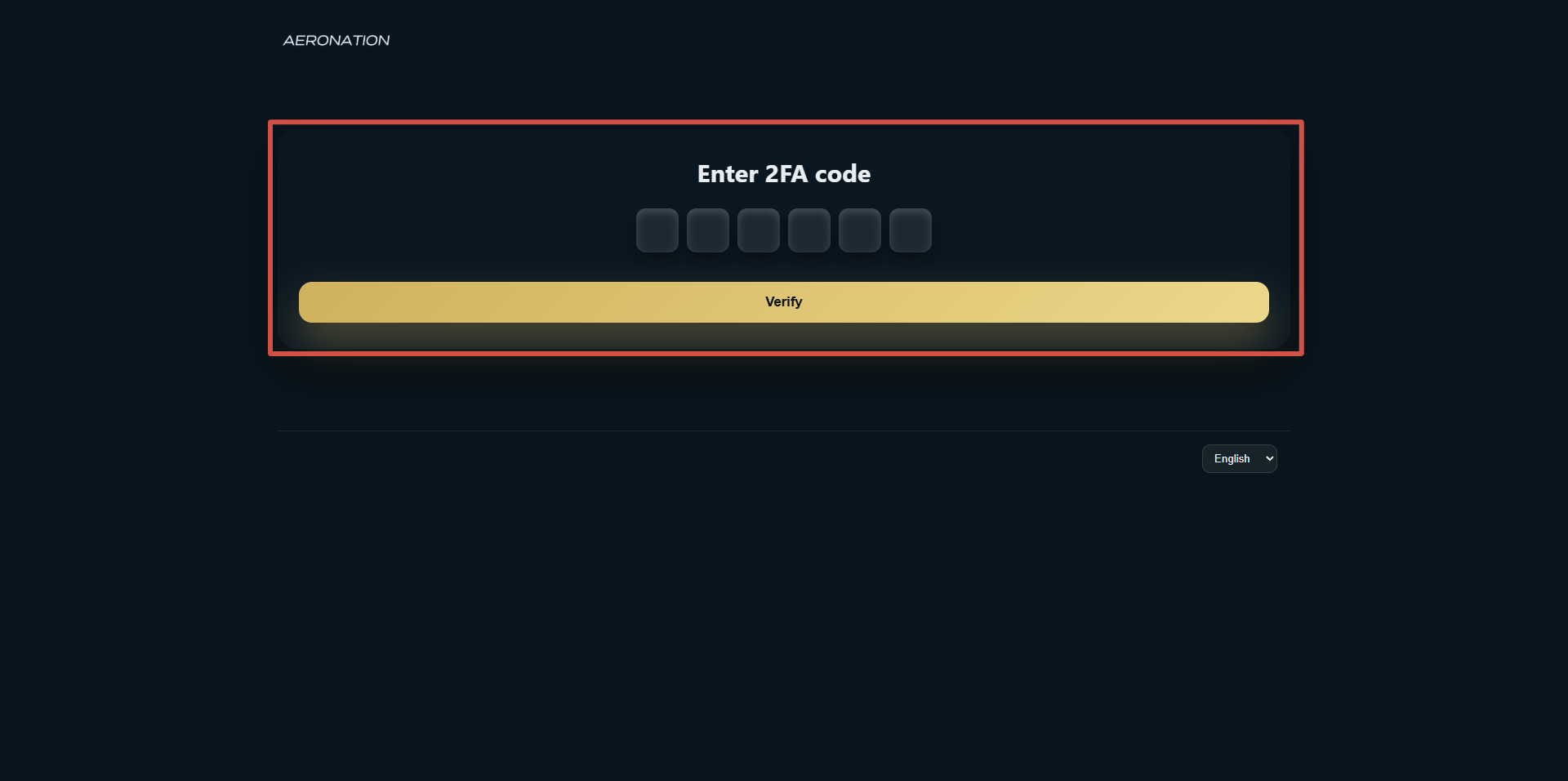
At the same time, the browser redirects you to the «Enter 2FA code» page.
The code is valid for 5 minutes. If more time has passed, you need to log in again with your username and password – a new code will be generated.
Step 3. Enter the code on the 2FA page
The 2FA confirmation page displays six separate fields for the code digits. Enter the code one digit at a time in each field (often, after entering a digit, the cursor will automatically move to the next field). Once all six digits have been entered, the form may submit automatically; otherwise, click the «Confirm» button.
Step 4. Result
- The code is correct and not expired – you will be taken to the dashboard (the main page of «My Dashboard»).
- The code is incorrect or expired – the message «Incorrect or expired code» will appear on the 2FA page. In this case, reopen the login page, enter your username and password, and you will receive a new code in VK.
Where does the code go?
The code goes to your VKontakte private messages in the account linked to your login (VK ID). Make sure you have access to this VK account and that you can receive messages from the panel (check the «Messages» section in VK or in the app).
If you are not receiving messages from the panel, check your VKontakte privacy settings and the list of blocked users in the community; if necessary, contact Aeronation support.
Disabling 2FA if you don't have access to VK
If you have enabled 2FA but lost access to your VKontakte account (where the 2FA codes are sent), you will not be able to log in with your username and password until you enter the current code. In this situation, the only way to restore access is to write to the support team and ask them to disable 2FA for your account after confirming your identity.
Frequently Asked Questions
Is 2FA required when logging in with a VK ID?
No. Two-factor authentication is only used when logging in with a username and password. No additional code is required when logging in with a VK ID.
How long is the code valid?
The code is valid for 5 minutes. If you did not have time to enter it, click «Log in» again on the login page, enter your username and password, and a new code will be sent to VK.
Can I request a new code without leaving the 2FA page?
No. To get a new code, you need to return to the login page and re-enter your username and password. After that, the old code will no longer be valid, and a new one will be sent to VK.
The code did not arrive on VK. What should I do?
Check the «Messages» section and possible restrictions (for example, «Junk»). Make sure you are looking at the VK account that matches your login (VK ID) in the panel. If messages from the panel are still not coming through, contact support.
I entered the code correctly, but it says «Invalid or expired code.»
Most often, the code has already expired (more than 5 minutes have passed). Log in again with your username and password and enter the new code immediately after receiving it. Make sure you enter all six digits in a row without spaces and that you have not mixed up the order.
Where can I enable and disable 2FA?
In your account Settings: side menu → «Settings» → «Two-factor authentication (2FA)» section → «Enable 2FA on login» switch → «Save» button. For more information, see the articles «Where are my account settings?» and «How do I enable or disable 2FA in my settings?».
Is it safe for the code to be sent to VK?
The code is sent only to you in private messages on VKontakte. The panel does not display the code anywhere on the website except in your session. It is important to keep your VK password safe and, if possible, not to log into VK from other people's devices.